
Try Zebra BI for FREE - add writeback comments to Power BI the easy way
Zebra BI gives you dynamic, filter-responsive comments built directly into your Power BI visuals. No complex setup, no maintenance - just comments that work.
 September 8th
 February 22nd
 27 Oct 2026
A Power BI report without an explanation only creates more questions, and the conversation moves to email, Slack, or PowerPoint until you find out why revenue missed plan. And by next month's close, that explanation is lost in an old thread or slide.
The problem is that Power BI reports are read-only for viewers. The people who actually know the reason, like the regional manager, the plant controller, or the sales lead, can't add it to the report itself. To keep the explanation where the number is, use writeback comments. They let people write context straight into the report, next to the data, so it's still there month after month.
There are three ways to add writeback comments in Power BI: natively with Microsoft’s translytical task flows, with a Power Apps visual, or with Zebra BI Tables+ and Charts+ commenting in view mode.
In this article, we'll take a closer look at each method and explain the setup, the limits, and the best use case for each one.
Want writeback comments without the Power Apps setup?
Zebra BI adds dynamic comments to Power BI in one click - no Power Apps, no Excel tables, no connectors needed.
Writeback in Power BI is the ability to change data directly from a report and send those changes to an application or database. By default, Power BI reports are read-only, so viewers can filter, drill down, or export, but they can't change the data or add anything to it.
There are 2 types of writeback:
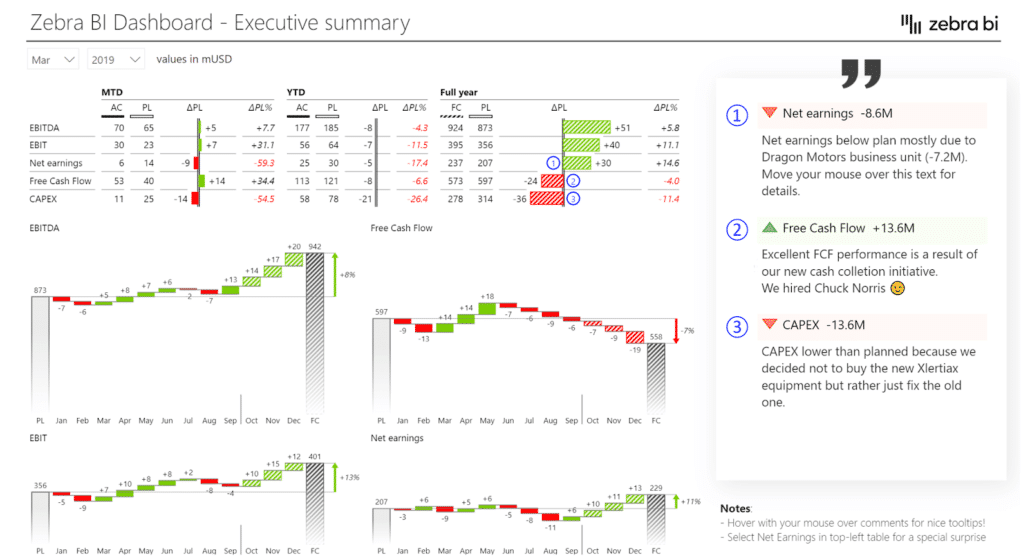
Power BI does have a built-in comments feature, but those comments sit in a pane next to the report, not on the data point they refer to. The number and its explanation end up in two different places, and readers have to look for the context.
Writing directly on the report isn't much easier. It requires editing rights, and most companies restrict those, since anyone with edit access can change or break the report.
However, you can fix both of these problems with writeback comments. They let people add explanations directly on the numbers, without edit rights and without changing the report itself.
| Native (translytical task flows) | Power Apps visual | Zebra BI Tables+ and Charts+ viewer comments | |
| What you need | Fabric capacity + Python user data function + Fabric SQL database, warehouse or lakehouse | A Power Apps app, shared separately from the report | Tables+ visual + one-time IT set up |
| Who can write | Report users, via buttons or input slicers | Users the app is shared with | Any licensed viewer, no edit rights needed |
| Code | Python | Low-code (Power Fx) | None |
| Where data is stored | Fabric SQL database, warehouse or lakehouse files | SharePoint list, Dataverse, SQL, Excel and others | Excel file in your SharePoint |
| When changes appear | Immediately (DirectQuery / Direct Lake); in import mode, after an automatic refresh | At the next scheduled refresh, unless DirectQuery + PowerBIIntegration.Refresh() | No dataset refresh; loads when the visual reloads |
| Changes to the data model | Yes | Yes, a comments table | No |
| Deployment pipelines | Buttons don't rebind across workspaces; must be fixed by hand | App must be re-shared in each environment | Confirm with product |
| Watch-outs | Embedded reports: secure embed only | Max 1,000 records passed in; no Firefox; no Report Server | Requires SSO tenant setting; certified-only tenants need the organizational store; |
You can write data back using translytical task flows, Microsoft's native way to do so from a Power BI report. You place a button or an input slicer in the report and connect it to a user data function, a short Python script that runs in Microsoft Fabric.
When a user clicks the button, the function writes their input to your data source, along with the report's filter context, so it's clear which product, region, or month the input belongs to. The feature has been generally available since the March 2026 Power BI update.
To make native writeback work in Power BI, you need:
In DirectQuery and Direct Lake reports, changes appear immediately. In import mode, they appear after an automatic refresh.
Translytical task flow limitations:
Deployment pipelines: buttons don't rebind automatically when you move a report to another workspace, for example from development to production. They have to be reconnected by hand.
Embedded reports: translytical task flows only work in embedded reports that use secure embed.
For step-by-step setup, see Microsoft's translytical task flows tutorial.
Translytical task flows are a good fit if your organization already runs on Fabric, you need to write back data such as budgets, forecasts, or corrections (not just comments), and you have someone who can write Python.
You can add comments with a Power Apps visual, an app built in Power Apps that runs inside your Power BI report. Users type their comment into a form in the app, and the app writes it to a data source like a SharePoint list or an Excel file.
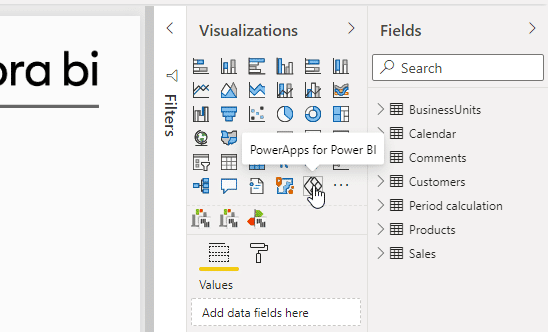
The Power Apps visual passes the data from the report into the app, so each comment is saved with the product, region, or month the user had selected. The comments are then loaded back into the data model, so they can be shown next to the numbers.
Here's what you need to write back with Power Apps in Power BI:
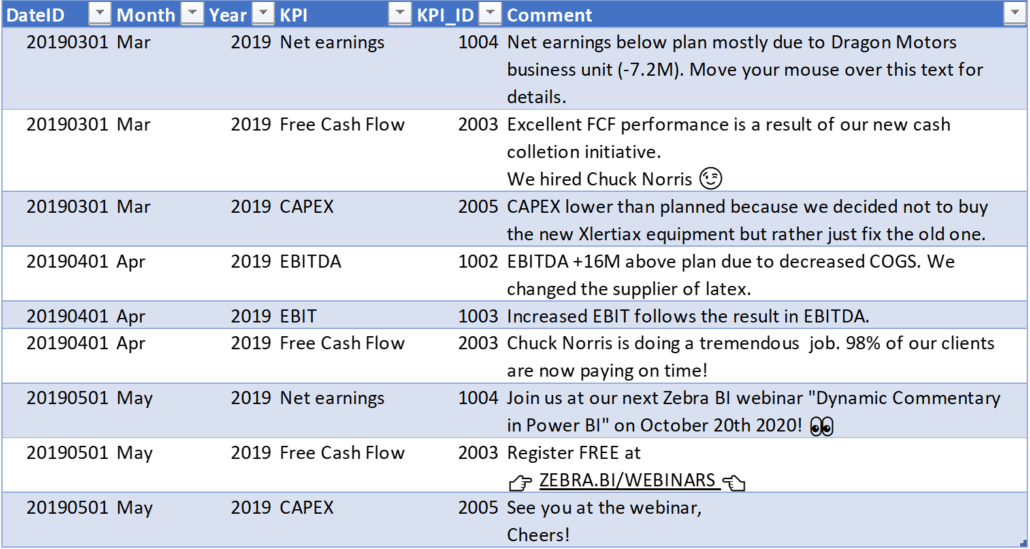
New comments appear in the report at the next scheduled refresh. If the report uses DirectQuery and the app calls PowerBIIntegration.Refresh() after saving, they appear right away.
Power Apps writeback limitations:
Despite its limitations, Power Apps can work well for teams that have the skills to build and maintain the app. Dutch telecom company KPN, for example, used Power Apps to build a writeback commentary system in Power BI. Their users can add and edit comments directly in their reports, and all comments are kept in one place, which makes them easier to track and manage. You can watch the KPN team explain their setup in the KPN customer story.
If you want to try this approach yourself, our webinar, Writeback Commentary in Power BI via Power Apps, walks you through the full setup.
Both methods above need someone technical to build and maintain them, and and with Power Apps, new comments often don’t show up until the next refresh. If you just want the people who own the numbers to explain them in the report, there’s a simpler way: anyone who views the report can add comments, without Power Apps, code, or edit rights.
Zebra BI Tables+ and Charts+ are visuals that let Power BI report viewers comment directly on the numbers.
Viewers click a data point and type their explanation, and the visual saves it to an Excel file in your SharePoint, along with the filter context it was written under, such as the year, month, or region. The comment stays attached to that data point: change the filter and it disappears; change it back, and it’s there again.
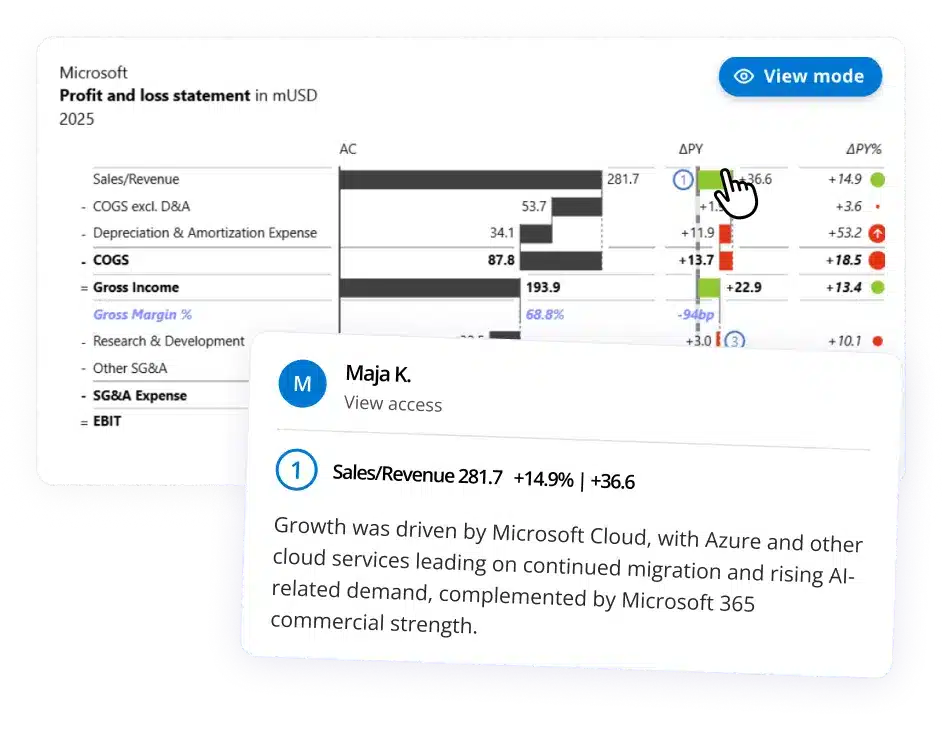
Here’s what that means for your team:
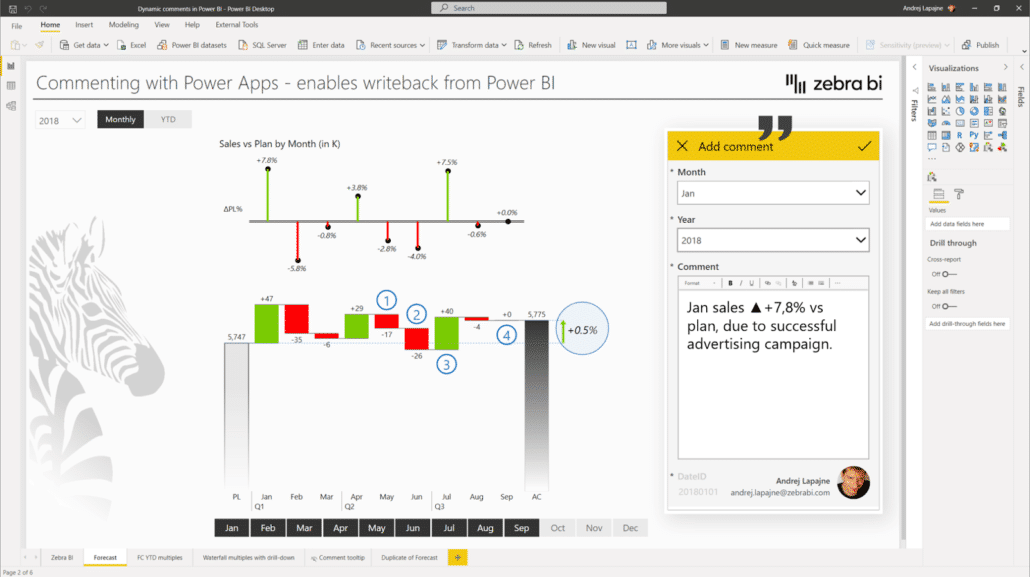
Here's what you need to set up Zebra BI Tables+ & Charts+:
Your IT admin needs to complete a one-time setup, which takes about 30 minutes:
See the full IT setup instructions.
Add Zebra BI Tables+ or Charts+ to your report. Drag the slicer fields you want comments to remember, such as year or month, into the visual’s Filters placeholder. In the visual’s comment settings, select Enable viewer comments and pick an Excel file in SharePoint.
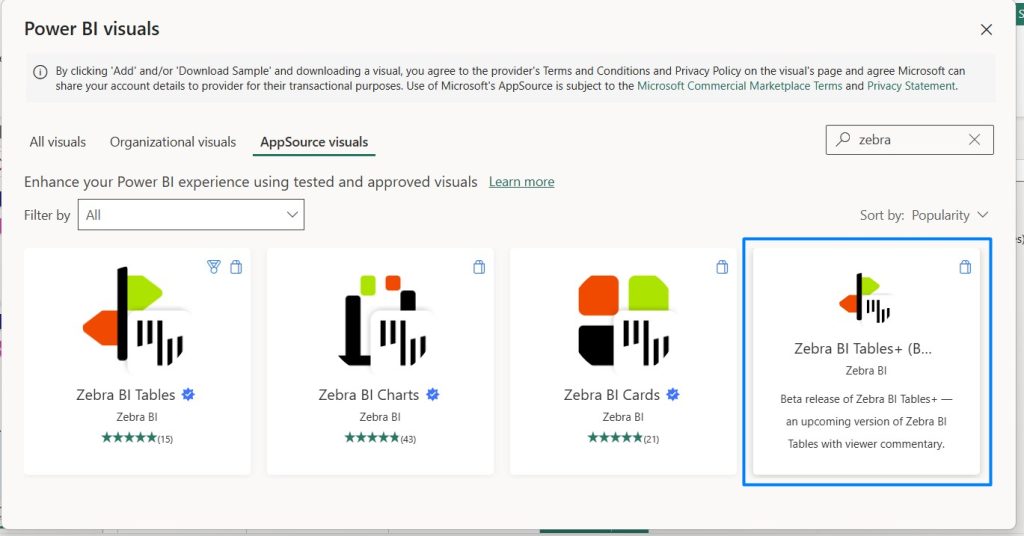
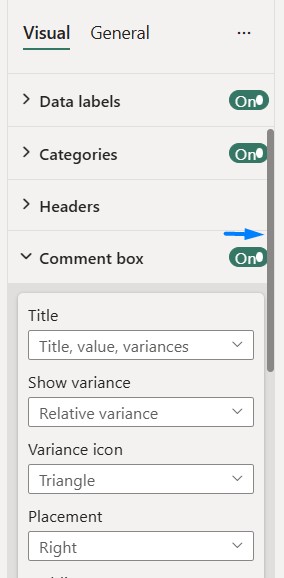
Turn on the comment box and save the report. Anyone with access to the Excel file can start commenting. See the full setup guide for report editors.
Comments load directly from SharePoint, so you don’t have to wait for a dataset refresh. The visual loads the latest comments whenever someone opens the report page, changes a slicer or filter, switches report tabs, or refreshes the browser.
If a colleague adds a comment while you have the report open, you’ll see it the next time the visual reloads. Viewers can comment on any data point at any level of a hierarchy and highlight areas in a chart or table.
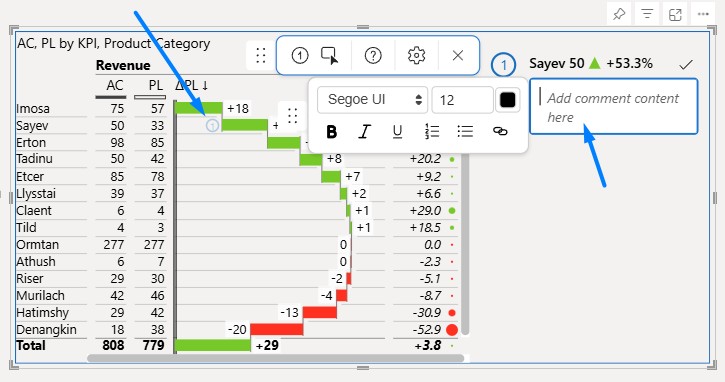
Several people can comment at the same time without overwriting each other, and one Excel file can hold comments from many reports.
Your data stays with you. Comments are stored in an Excel file in your own SharePoint, and Zebra BI never receives or keeps a copy.
Full audit trail. Every comment and deletion is logged in the file with the user and a timestamp. Viewers don't see who wrote a comment by default, but admins can always check the file.
Tables+ is a good fit if you want business users, such as managers, controllers, or regional leads, to explain the numbers directly in the report, without code, edit rights, or waiting for a refresh. It's built for comments, not for writing back numbers, such as budgets or forecasts.
Yes, Power BI can write back to Excel, but not on its own. Power BI reports are read-only, so you need one of the three methods above to send input from the report to an Excel file. Each one handles Excel differently:
Zebra BI Tables+ saves comments to an Excel file in your SharePoint automatically. It's built for comments, not numbers like budgets or forecasts.
The right method depends on what you want to write back, who should write it, and the setup you already have.
Translytical task flows work best if your organization runs on Fabric, you need to write back data like budgets or forecasts, and you have someone who can write Python.
Power Apps works well if you need custom forms or want to write numbers back to SharePoint lists or Excel, and you have someone comfortable with Power Fx.
Both are good options for writing back data or building something custom, but they take technical skills to set up and maintain. If you mainly want people to explain the numbers, Zebra BI Tables+ and Charts+ are the easiest place to start. Report editors turn on viewer comments in the visual’s settings, so there’s no code to write and no app to build or maintain. You don’t need Fabric capacity or a database either, because comments are stored in an Excel file in your own SharePoint. Viewers can comment without edit rights, and new comments don’t wait for a dataset refresh. Because Tables+ and Charts+ are built on Zebra BI Tables and Charts, you also get IBCS-compliant tables and charts and automatic variance calculations in the same visual.
Power BI Report Server isn’t supported by any of these methods. Native writeback requires Fabric, and neither Power Apps nor Zebra BI Tables+ and Charts+ work on Report Server.
A number without an explanation only starts a new email thread. Writeback comments keep the answer in the Power BI report, next to the data, so it's still there at the next close.
The truth is that all three methods can get you there. Translytical task flows suit Fabric teams that need data writeback and can write Python. Power Apps works for custom forms and writing numbers back to SharePoint or Excel. And if you want the people who own the numbers to explain them directly in the report, without code, edit rights, or waiting for a refresh, Zebra BI Tables+ is the quickest way to start.
Pick one report your team reviews every month, turn on viewer comments, and let the people who know the reasons write them down at your next close. Try viewer comments in Tables+ with Zebra BI's 14-day free trial.
Yes. You can write back data natively with translytical task flows, which require Microsoft Fabric and a Python user data function. For comments, you can use Zebra BI Tables+, which lets report viewers write comments directly on the numbers without Power Apps or code.
Yes. Translytical task flows are Power BI's native writeback feature, generally available since the March 2026 Power BI update. They need Fabric capacity, a Python user data function, and a Fabric data store, such as a SQL database, warehouse, or lakehouse.
Yes, with Zebra BI Tables+ and Charts+. Once the report builder turns on viewer comments, anyone who can view the report can comment on the numbers without edit access to the report.
Yes. In Zebra BI Tables+, comments are tied to the data point and the filter context under which they were written, not to the visual or the page, so adding visuals or pages doesn't affect them. If you change the filter context itself, for example by capturing new slicers, existing comments need to be updated to match, and Zebra BI can help with the migration.
Not with Zebra BI Tables+. Comments load separately from the report data, directly from SharePoint, so they don't affect how quickly the visual loads.
No, by design. Microsoft certification doesn't allow visuals to connect to anything outside Power BI, and Tables+ needs to write comments to your SharePoint. Organizations that only allow certified visuals can add Tables+ through their organizational store.
New: Zebra BI Tables+ and Charts+

Hi,
Thanks for providing this step-by-step tutorial!
However if I want to be able to edit existing comments and update it back into the excel using power apps, is this possible?
It's like having a notebook, whereby user can write and update.
Hi ZY. Yes, you can set up your PowerApps to update existing records instead of just adding new ones. Best regards.
Adding dynamic writeback comments using Power Apps in Power BI is a game-changer for user interaction. This tutorial fills a crucial gap by enabling direct feedback integration within dashboards. Users can now enhance reports with qualitative insights, transforming data analysis into actionable narratives seamlessly.
Thank you for the feedback! We’re glad you found the writeback comments integration helpful for adding qualitative insights directly into dashboards!
This guide on implementing writeback comments in Power BI using Power Apps is incredibly insightful! The step-by-step instructions make it easy to follow along, and the examples provided are very helpful. It's great to see how seamlessly Power Apps can be integrated with Power BI to enhance interactivity and user engagement. Thanks for sharing this valuable technique!
Thank you for your feedback! We're very glad you liked it.
A very useful article and source for learning such high-quality information! I appreciate you sharing this useful information.
Very well explained 👏
The lack of native commenting in Power BI is something many teams struggle with, especially during leadership reviews where context behind KPIs is critical. Using Power Apps for dynamic write-back comments is a smart and practical workaround.
At Web Synergies, we’ve seen similar approaches work well when Power BI is integrated with SharePoint, SQL, or OneDrive, helping business users add real-time explanations without breaking the flow of analysis. Making comments interactive with slicers adds even more value.
Thanks for sharing this clear, step-by-step tutorial — definitely useful for anyone building executive dashboards.