Worst Power BI Dashboard Mistakes
By Ziga Milek • Last updated •

Common Mistakes in Data Visualization: A Complete Guide for Power BI and Beyond 

Share this

PRO Trial

Available for Free!
Join over 1,500,000 Zebra BI users who can produce insightful reports every time!
Try Zebra BI for free

Poor data visualization leads to bad business decisions—whether you're using Power BI, Tableau, or any other tool. The problem? Most dashboards and reports fail not because of bad data, but because they prioritize aesthetics over clarity. They look impressive in presentations but don't drive action when it matters. 

This guide covers the most common mistakes in data visualization, from choosing the wrong chart types to using misleading colors. You'll learn universal principles that apply across all tools, with practical implementation examples in Power BI. Every mistake is illustrated with real examples, and every problem comes with a concrete solution. 

The framework is simple: effective dashboards must be understandable and actionable. If your audience can't comprehend your visualization within seconds or doesn't know what to do with the information, you've failed—no matter how beautiful it looks. 

Here's what you'll learn: the 10 most critical dashboard design mistakes, additional data visualization errors to avoid, best practices for clarity, and a complete dashboard redesign walkthrough showing these principles in action. 

Note: This Power BI dashboard design tutorial is based on our 1-hour webinar on the same topic. If you prefer to watch the video, scroll to the bottom of this tutorial, enter your details and we'll send you the webinar recording and all PBIX examples to go along with it.

Why data visualization mistakes matter 

Misleading visualizations lead to wrong decisions that cost time and money. Confusing dashboards mean stakeholders stop using them altogether, wasting months of data collection and analysis effort. Poor design erodes credibility—once your audience catches a misleading chart or confusing layout, they'll question everything you present. 

The most common outcome? Dashboards that look beautiful but provide no actionable insights. Common signs of poor data visualization include: 

  • Hiding relevant data that would provide critical context 
  • Overloading charts with too much information at once 
  • Distorting data presentation through poor chart choices or deceptive scaling 
  • Inaccurate data descriptions where text doesn't match what the data shows 
  • Confusing visuals that require extensive effort to understand 

Edward Tufte, the pioneer of data visualization, captured the essence of good design: "Graphical excellence gives viewers the greatest number of ideas in the shortest time with the least ink in the smallest space." Every element in your visualization should serve a purpose. If it doesn't help your audience understand or act on the data, remove it. 

The key concepts of Power BI dashboard design

We believe dashboards design boils down to two words:

  1. understandable and
  2. actionable.

So these two goals would be my mission here. Let's take a look at a dashboard example.

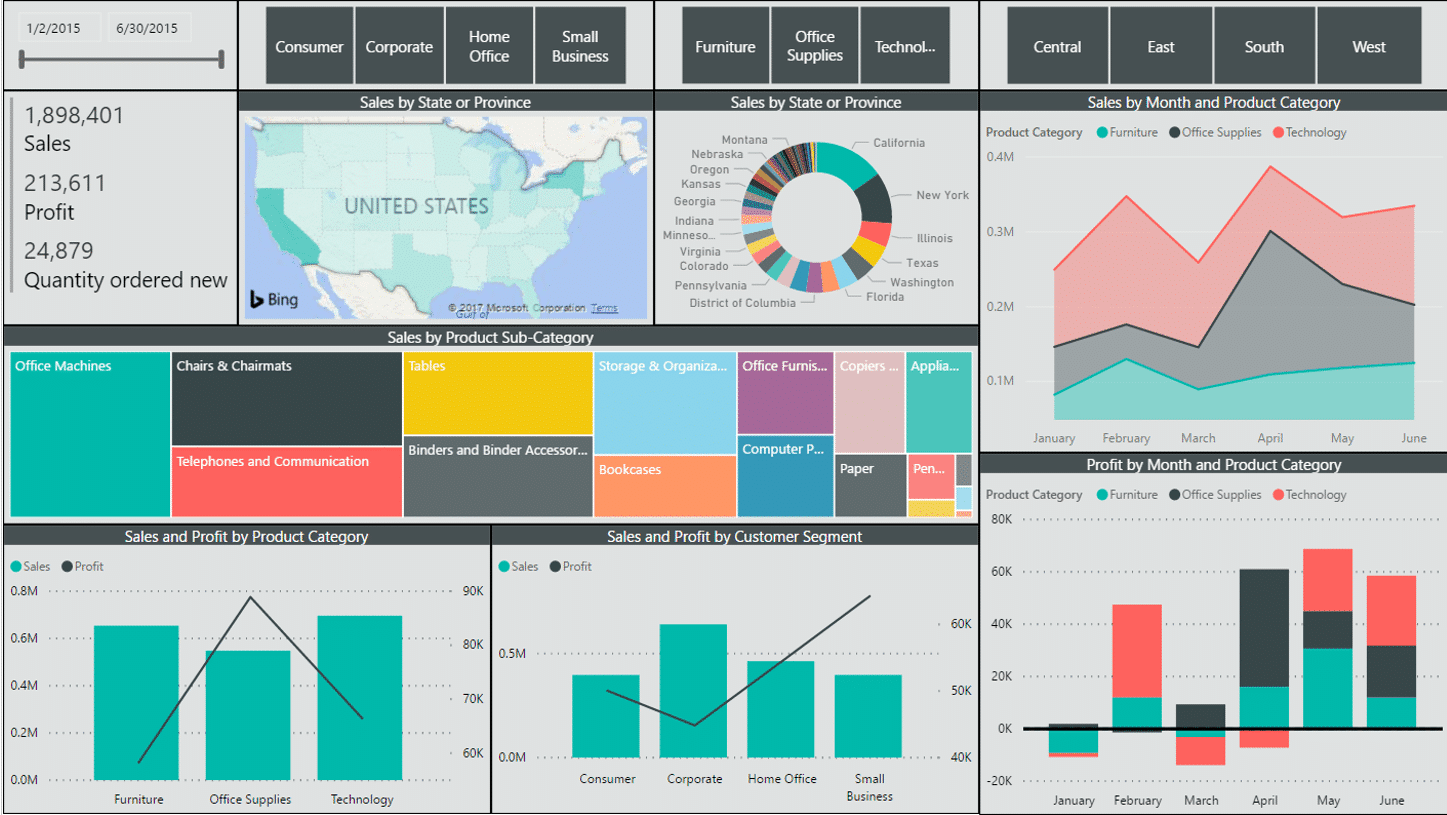
a dense and colorful business intelligence dashboard
High information density and plenty of colors do not make this dashboard actionable.

At first glance, it looks good. It's very colorful with lots of information, so we can say it has good information density and shows a lot of detail. However, when you see something like this for the first time, you have no idea what to look for, where to click, or where to focus your attention. It's obviously some kind of a sales dashboard. Here in the left corner, there is some sales information and there is some profit information and new orders quantity.

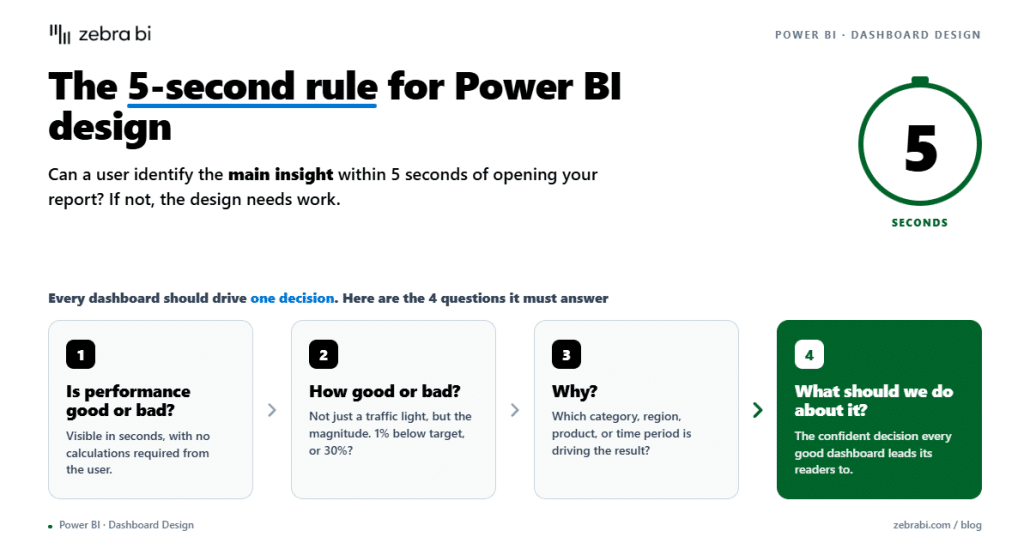
But if you're looking at your sales performance and look at this dashboard each month, it doesn't answer the most obvious question: "Is my sales performance good or bad?"

By the way, if you need more actionable Power BI dashboard examples, we have a bunch of them. Check them out and download a template to see how they work!

Dashboard design needs to answer simple questions

That's a very, very simple question. But this picture doesn't tell you whether sales performance was good or bad. Is this information for one month or a particular period? Are you hitting your sales targets or not? There's no way to tell, even though these are trivial questions in business. 

But even if you find the answer, the next question arises. How good? How bad? Are we underperforming? Is it critical? Do we need to take action right now? Or is everything just awesome and business as usual, so we can move on? Again, this dashboard does not give us an answer. 

If the situation is bad or critical, the next obvious question is why. What happened? What went wrong and what went right? The dashboard shows the structure of sales by product and by product category. It has a breakdown by customer segments and shows profit by month and product category. In the end, however, it's really hard to say: is this good or bad? 

This means it's not actionable. This dashboard may be nice. You may like it. It may look beautiful. However, it's not actionable. The number one issue here is that the dashboard has absolutely no comparisons. We are not seeing comparisons to the plan or the previous year or anything at all. 

Instead, we have breakdowns by different categories and dimensions where every breakdown is presented with a different visual. There are regular column charts, a tree map, a nice little colorful doughnut, and even an attempt at geographic presentation. This is not helping, it's not actionable, and it's not even understandable. So it fails on both counts: a dashboard must be understandable and actionable

What makes visualization effective: 

  • Clarity and immediate comprehension - answers questions within seconds 
  • Accurate representation of data without distortion 
  • Shows "how much" and "why" - not just absolute values but context 
  • Enables comparison - between actuals and targets, time periods, categories 
  • Appropriate context and labeling that guides interpretation 
  • Visual hierarchy that guides attention to what matters 
  • Actionable insights visible at a glance 

Charts that lack clarity are not actionable

Let's take a look at the next dashboard.

a dense and colorful business intelligence dashboard

This is one of the more interesting dashboard examples because it does have certain variances calculated. We see the revenue percentage variance in relation to the budget. There's also a comparison to budget. If you focus really hard to try and understand all of this, you might glean some information. 

Again, it's really difficult to see whether the performance is good or bad. That's something that should be obvious in a few seconds. You should be able to see whether performance is good or bad and how good or how bad. Are we looking at one percent below the plan? Or is the performance 50% below the plan? This is something that should be obvious. What was the thing that contributed in a positive or negative way? It's only when you understand what happened that you're able to take action. 

That means actionable. 

Looking at some more mistakes

Here's another dashboard with a similar problem.

a dense and colorful business intelligence dashboard
To get at the information, users would have to mouse across every pixel on this dashboard to make sense of the information.

The stacked chart is the worst culprit here.

Understanding the scope and the volume of every data category here is just completely impossible unless you take the time and hover with your mouse over every little section to read the numbers. Maybe then you'll understand what's going on. But you can't expect that from your end-users. They won't spend unlimited time just trying to understand the data, clicking and waiting for tooltips to show up. They won't examine every little pixel on your dashboards, so it should be much easier to understand.

Here's another dashboard that's not actionable.

a very monochrome business intelligence dashboard
You lose readability when you use a single color for completely different things on a dashboard.

There's a lot of green color here, but this green does not always represent the same thing. Sometimes it represents the sales amount, sometimes it's a count of status, sometimes it's a blank product category and so on. This is not helpful.

A better way to design Power BI dashboards

Here is a dashboard designed using a completely different approach.

an IBCS compliant business intelligence dashboard
Fewer colors, better chart selection and focus on comparisons make a better dashboard.

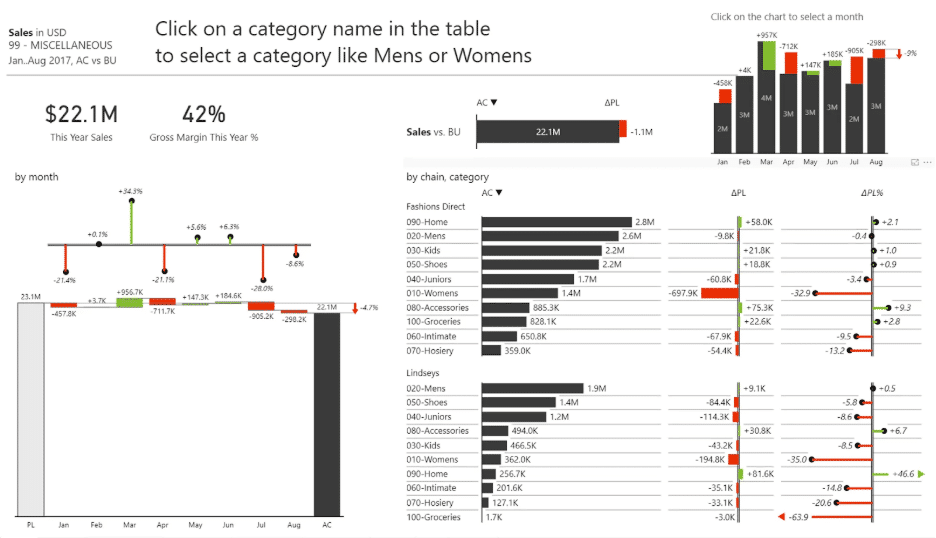
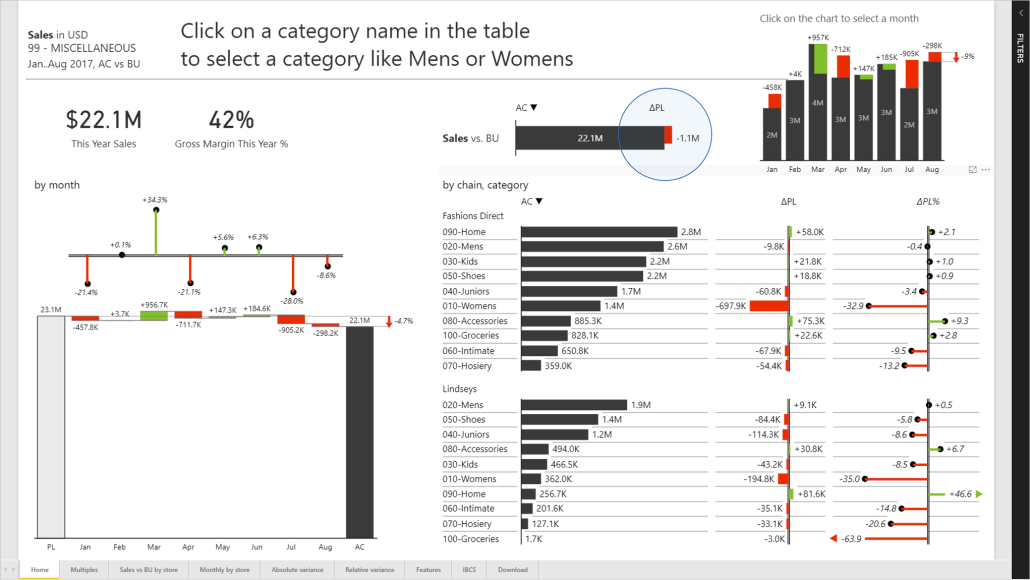
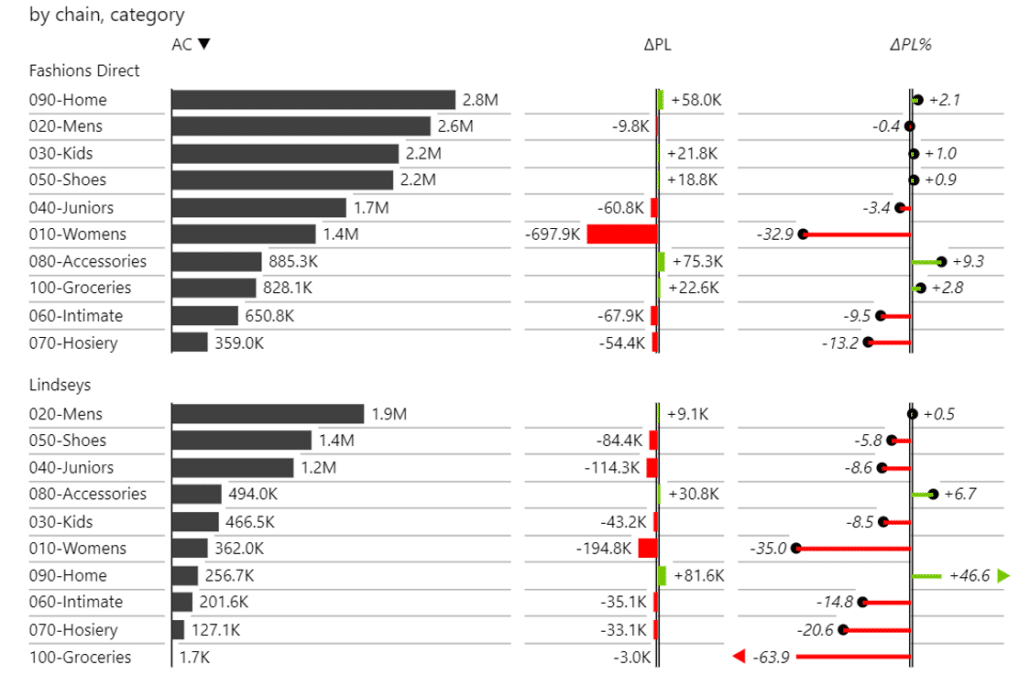
This time, here's a dashboard that again shows multiple KPIs. For example, below is a bar that highlights sales versus budget. The sales were 22.1 million and there's a red section on the bar showing we were 1.1 million below the budget. A single glance shows us that we are 1.1 million below target.

A bar showing comparisons
This comparison immediately reveals that you are under target.

We can immediately start to look for reasons for this underperformance. This is a retail operation, so you can look at the split by store chains. Some product categories are sold in two different store chains. A simple visual comparison allows you to understand that the problem is in the category of woman's clothing, especially in the Fashions Direct chain. This is clearly highlighted with red color.

absolute and relative variances along with actual values
Absolute and relative variances along with actual values guide your focus.

Women's clothing category is also under-performing in the other chain but to a lesser extent. You can easily understand not only what is good or bad, but exactly how bad it is. It's obvious that we must focus on women's clothing product category and take action.

In a good dashboard, you should be able to click on this row to expand it and observe the details. Another option is to right-click data and drill through to another page that contains more detailed information about all stores or categories that explains what is going on.

So this is how your dashboards should be constructed. Only after you apply thoughtful and focused design will they become understandable and actionable.

10 most common dashboard design mistakes

To err is human, but why make mistakes you don’t have to? Here are 10 common dashboard design mistakes you can save yourself from (so you can deliver dashboards and reports that communicate your data story) 

Mistake 1: Poor choice of charts 

The number one mistake is a poor choice of charts. Selecting the right chart is as much an art as it is a science. People fail for three main reasons: wrong chart orientation, choice of wrong chart type, and lack or failure to use advanced charts designed to present variances and other important data categories. 

Wrong chart orientation 

A number one rule is that if you see labels displayed diagonally, something is wrong with the chart. 

The problem is that the labels are long and they are displayed diagonally, otherwise they would be completely trimmed and you couldn't even read them. But if you want to read the labels like this, you need to tilt your head, and your neck starts to hurt. If you hate your boss, it's okay, but it's considered a bad practice. 

Why does this happen? The reason in this case and in 80% of cases is that the charts are oriented in the wrong way. You should simply take this chart and turn it around by 90 degrees. You will end up with a chart that has a vertical axis and has all the labels displayed nicely and horizontally so people can read them. 

This is the issue with almost every poorly designed dashboard. If you Google the word dashboard, you'll see this problem everywhere. Whenever you have diagonal labels, there's a chance that you simply need to flip the chart around. You'll solve 50% of the problems right away. 

How to know whether to put data on a horizontal or vertical axis? 

Most charts either have a horizontal axis or a vertical axis. When should you turn the chart around and use the vertical axis? The rule is very simple. If you're presenting time, like days, weeks, months, quarters, annual time series and so on, just use charts with a horizontal axis. Time goes left to right, and that's it. For everything else, like countries, products, sales channels, profit centers, and so on, always rotate the chart and use charts with a vertical axis. 

This is a very, very simple rule that can fix so many of your problems. 

Below is a typical example of a chart that would benefit greatly from this quick fix. It's a project dashboard showing planned baseline work versus actual baseline work. It's showing the remaining work by project and not time. In this situation, you should just rotate the chart around and sort from the most important to the least important. 

Wrong chart types for data structure 

Beyond orientation issues, choosing the wrong chart type for your data structure creates confusion and misinterpretation. Common mistakes include: 

  • Pie charts when percentages don't sum to 100% or when comparing more than 5 categories 
  • Line charts for non-time series data (use bar charts instead) 
  • Stacked charts with too many categories (impossible to compare middle segments) 

The 3D chart problem 

3D charts might look sophisticated, but they distort perception. When you add depth to a bar or column chart, the rear portions appear larger than the front despite representing equal values. This visual distortion leads viewers to misinterpret your data—exactly what you're trying to avoid. 

The solution? Always use 2D charts. If you truly need to represent three dimensions of data, use bubble plots with size representing the third dimension, or add color gradients to encode additional information without spatial distortion. 

Chart selection framework 

Follow these guidelines for choosing the right chart: 

  • Comparison: Use bar or column charts for comparing values across categories 
  • Trend over time: Use line charts for showing change across time periods 
  • Part-to-whole: Use pie charts sparingly (5 categories maximum), or better yet, use bar charts 
  • Distribution: Use histograms or scatter plots for showing how data is distributed 
  • Correlation: Use scatter plots to show relationships between variables 

In Power BI, you can easily change chart types by selecting your visual and choosing a different chart type from the Visualizations pane. Apply the orientation rule immediately after selecting your chart type to ensure readability.

Mistake 2: Poor labeling in dashboards

It's really hard to get the number of labels in your dashboards right because you can overdo it or you can fail at presenting the numbers. Take a look at the chart below. It has practically no labels.

Power BI Dashboard design mistake: poor labeling
Don't leave the labels out of your dashboard and force users to guess what each chart stands for.

Many of the labels are missing and the pie charts are completely without labels or even a legend. We basically have no idea what we're looking at.

You need some labels, otherwise, people will have to hover their cursor all over the dashboard to view each label. Even worse, if somebody prints this or creates a PDF or a PowerPoint presentation all the details of the numbers will be lost. This means you need to get the label density right to keep the dashboard legible in different scenarios.

Let's look at the next example.

Dashboard with poorly selected labels
Choose labels carefully - they are just as important as data.

Some of the charts have labels while others do not. It's hard to see the reason behind it.

The danger of inaccurate data descriptions 

Labels do more than identify data points—they shape interpretation. Inaccurate data descriptions create a gap between what your data shows and what your audience understands. Even if your underlying data is correct, misleading titles or labels will affect how people interpret and act on your information. 

Common labeling mistakes include: 

  • Titles that don't match the data displayed 
  • Axis labels with missing or incorrect units 
  • Legends that use technical jargon instead of plain language 
  • Descriptions that introduce bias or imply causation when only showing correlation 

The balance problem 

However, there is such a thing as too many labels, where communication is hampered by too much information. Let's look at another example: 

Example of too many labels on a dashboard

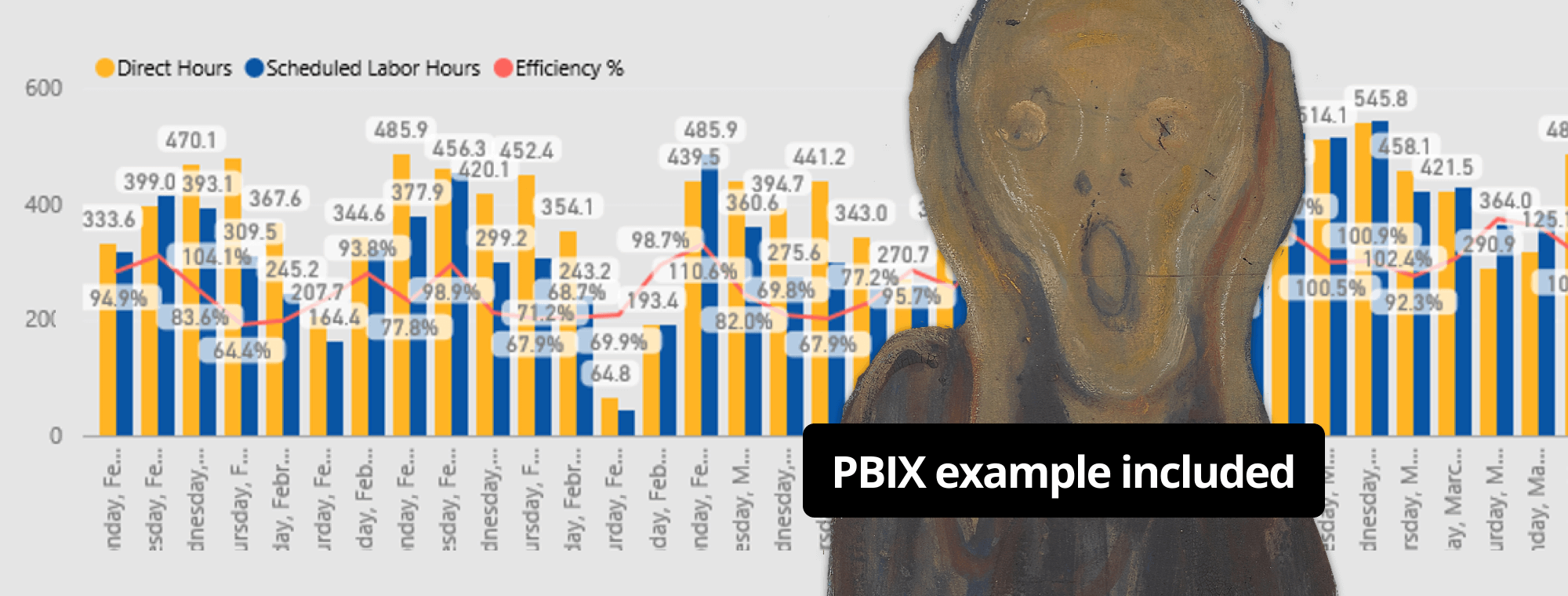
This report obviously has way too many labels, and they are overlapping, which is something that should never happen. This is a very problematic dashboard that would take a lot to redesign. It tries to compare direct hours to scheduled hours. There is some sort of comparison over time, but the problem is that this chart is combining a column chart with a line chart on top. This means that every series in this chart has labels that will always overlap. 

You need enough labels for comprehension, but not so many that they create clutter. Too few labels force your audience to guess at values and meanings. Too many labels overwhelm the visualization and make it harder to extract insights. 

The solution: Ensure every title, label, and description accurately conveys the intended meaning without bias. Use plain language, include units on axes, and test your visualizations with someone unfamiliar with the data. If they misinterpret it, your labeling needs work. 

Use short date and time labels 

The next problem that is very common, especially in Power BI, is the time labels. 

Example of poorly used time labels on a Power BI chart

In this example, the labels are tilted. And this time, we're working with a time series chart showing monthly values, but the labels are tilted because they are too long. This chart could be usefu,l but the labels are simply too long. 

The solution here is very, very simple. Just use three or four-letter month abbreviations. Simply use Jan, Feb, Ma,r and so on instead of January, February, or March. This will make the problem go away, and you will have short labels and present them in a readable, legible way that everybody can read. 

Of course, this means that you have to do something in your Power BI model, or you have to make sure that your data contains a time dimension. And this time dimension uses abbreviated month names. You need to make sure that you have this in Power BI, or all of your charts will look like this. The tilted labels are obviously not okay, and it's worth spending 15 minutes or half an hour to fix your time dimension in the model. 

Typically, we see this with long month names which is why you shouldn't use them. It also happens when people just put the time and the date-time field into their axes' labels. Some people even use the whole date, for example, 1 January 2018. These are also really long labels that shouldn't be used. 

Mistake 3: Too many slicers

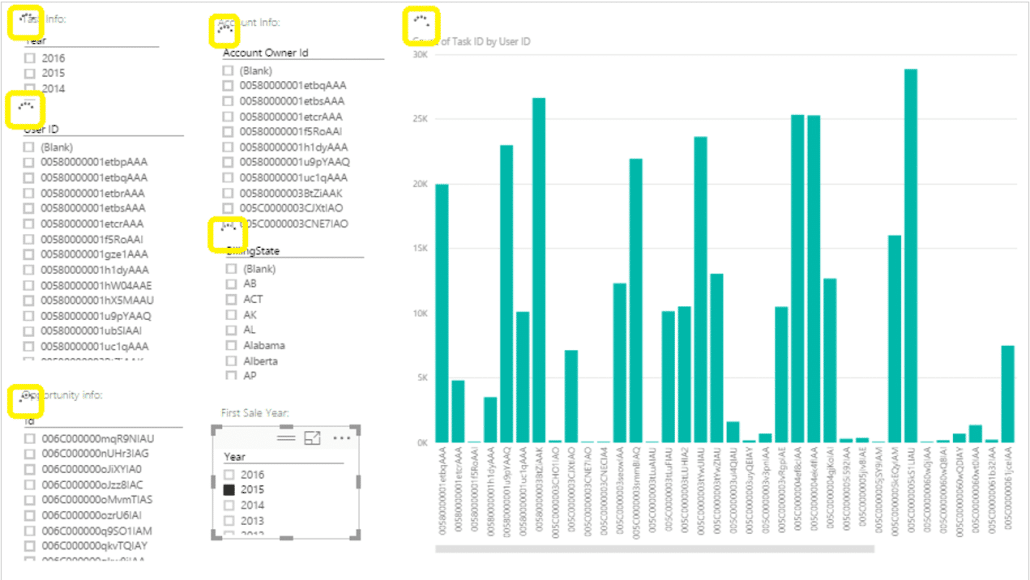
The third mistake is the excessive use of slicers. It's very tempting to use slicers and to overuse them. Let's take a look at a report.

Power BI Dashboard design mistake: too many slicers
Too many slicers obscure the story behind your data.

I have seen many dashboards where slicers take almost half of the page. In this case, you're expecting from your users to tick every check-box. It's as if you were blind and tried to see something and in the end after you've clicked everything, something will change on this chart. That is not how dashboards should be designed.

Avoid analysis paralysis

You want to make sure to design for this interaction in a proper way and slicers are not always a good choice, especially if they have a lot of elements. If you have up to five options, it's okay to use a slicer. But if you have more choices, then use a drop down menu, put it somewhere at the top of the dashboard. You should use one drop down menu for each data field or each data dimension.

Alternative approaches

Alternatively, you can use the space taken up by slicers to display a chart. Instead of having a slicer that lists every state, for example, you can turn the list of states into a chart. People can then use the chart to filter the main chart. The thing is that in Power BI, the chart has almost the same function as a filter. You can click on individual data categories in a chart to filter the whole page. Instead of wasting space on slicers, you can use it to display useful information.

Mistake 4: Inconsistent use of colors

Let's move to mistake number four: Inconsistent use of colors. Color is a difficult topic but having 30 different colors in a report, or even in just one chart is way too much. With so many colors, it will be impossible to read. This is the reason why visuals, such as treemaps or stacked column charts, are very tricky and should only be used with great caution. If possible, replace them with simple bar charts that contain a comparison.

Power BI Dashboard design mistake: too many colors
While colors look pretty they can quickly make your dashboard - and story - very messy.

Too many colors 

Humans can effectively distinguish between 5-6 colors maximum in a single visualization. Beyond that threshold, colors become too similar and the visualization loses its ability to communicate distinctions. If you're creating a treemap or stacked column chart with 15 different colors, your audience won't be able to differentiate between them—rendering the color coding useless. 

Too many colors is an issue you see in Power BI reports all the time. The dashboards with multiple colors may look really nice. Look at the example below, which actually uses a nice color scheme with slightly desaturated and balanced colors. 

But again, there is too much color here, even though there are fewer colors than before. The second problem is that the same color represents completely different things in different charts. 

Misleading color contrast 

High degrees of color contrast cause viewers to believe value disparities are greater than they actually are. If two data points have similar values but drastically different colors, viewers will perceive a larger gap than exists. Conversely, similar colors for very different values minimize important distinctions. 

Solution: Use color contrast intentionally to highlight what's important. Reserve high-contrast, saturated colors for variances and exceptions. Use neutral colors for baseline data. 

Inconsistent color meaning 

For example, sales is represented by the color blue, and on another chart, the same color is used to represent the data category of business flight tickets. On the third chart, the blue color represents yet another data category. This happens if you're assigning colors to every chart completely independently of all the other charts that you have on a dashboard. This usually happens when you are using a color them,e and Power BI just applies the colors automatically with no consideration for the context. 

The idea behind dashboard design is to achieve consistency in using color. This means that every time a color is used it means the same thing. So how should you go about that? 

The first step is to remove pie charts from your dashboard. Then you will not need all of those colors. By switching to a bar chart you will easily get rid of six colors and can just use one. 

Color accessibility 

Approximately 8% of men and 0.5% of women have some form of colorblindness, most commonly red-green colorblindness. If you rely solely on red and green to distinguish between important data points, a significant portion of your audience can't use your visualization effectively. 

Solution: Test your visualizations in grayscale to ensure they remain readable. Use patterns, labels, and shapes in addition to color to encode information. Avoid red-green combinations for critical comparisons when they're the only distinguishing feature. 

Use simple and effective colors 

Colors should be used to tell a story. They should not be applied randomly from a theme. 

Shouldn't negative values be red and positive values green? 

This chart shows the budget remaining by time. The point here is that if this is the budget remaining, it actually shows a variance in millions of dollars. Where the results are below the budget, why not use red, and then use green when the results exceed the budget? When you do this, you have a concept behind color usage - green for positive, red for negative. 

Let's take a look at an example of this in practice: 

Start with some neutral, completely desaturated colors for normal comparisons, and then use saturated colors for the variances. This will ensure that the variance is emphasized as the most important part of your dashboards. When you want to show whether things are changing or not and whether they are changing for the better or worse, you use simple and intuitive colors. 

In this example, we only used three, maybe four colors: light gray, black or dark gray and red and green for positive and negative variances. It's very simple. 

In this chart, the leftmost bar showing the plan is light gray, and the dark gray bar is the actual. However, I'm not using a different color for that. Instead, we used a slightly different shape with this outline. Because a plan is like an outline that you steer and then you fill it up with your actuals as you sell your products. 

If you follow this principle, your reports will be much clearer. The reader's attention is focused and guided by the color that is applied to the variances. In the example below, your attention is drawn to the chart with a lot of red color, where there is a big variance from the plan. When you see something performing 33% below the plan, you know something is not okay. So that is where your attention should go. 

The same thing holds true for financial statements like income statements. There is no need for too many colors. You can work with a lot of data categories and simply use one or maybe two colors. 

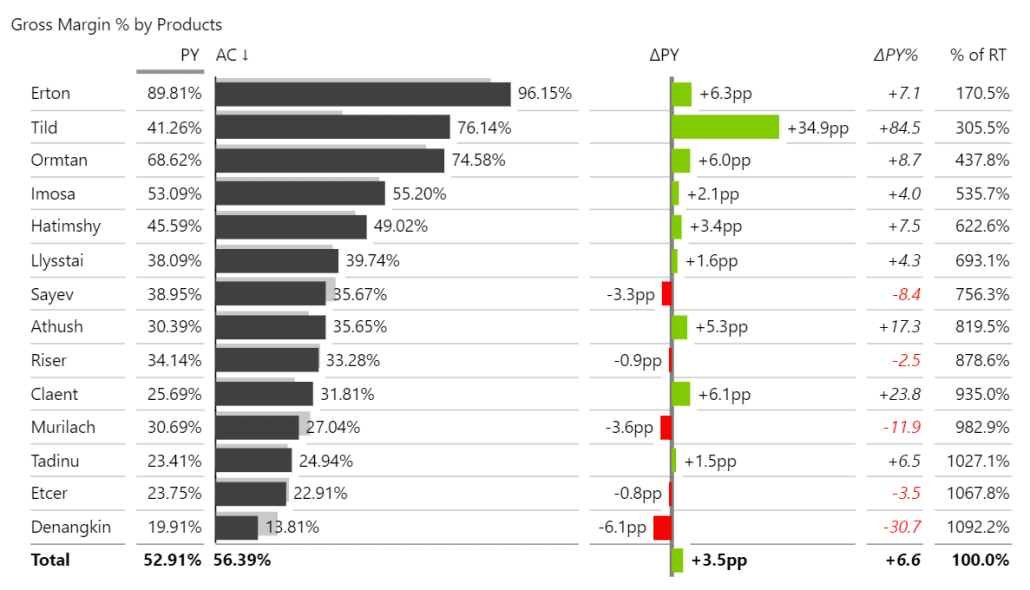
Just using a slightly lighter or darker color you can show the difference between the actual year and the previous year. Variance is also very simple to show - just use two colors - green for positive, red for negative values. 

Key principles for color in Power BI: 

  • Limit each visualization to 5-6 colors maximum 
  • Use neutral grays for baseline data (actuals, historical values) 
  • Reserve saturated colors (red/green) specifically for variances 
  • Apply colors consistently across your entire dashboard—same color always means the same thing 
  • Test in grayscale for accessibility 

Mistake 5: Not showing variances

And since we're on the topic of variances - in my opinion, mistake number five is the most important. The biggest failure of dashboards that we see is people not showing variances. Skipping variances is simply not OK.

Remember the sales dashboard we looked at in the begining? Take another look at it.

Power BI Dashboard design mistake: not showing variances
A dashboard without variances cannot tell a story.

There's absolutely no comparison to plan here. There's no plan in this dashboard, and there's no comparison to previous years. While you might be able to discern some kind of a trend here or see some seasonality, you have no idea whether the actual results are good or bad. The main issue here is that you have no way of telling how your business is actually doing.

Let's look at the next attempt.

dashboard with pie charts
Comparisons are hidden in pie charts that do not reveal their scale.

There is actually some kind of a comparison here, a forecast, baseline costs and actual cost. However, they are displayed in completely separate charts, making it really difficult to compare all these data categories. The main issue is that they are in pie charts making it impossible to understand the scale of individual categories. It's just not a good idea to create your dashboards like this.

a dashboard that obscures the gap between values
Use variances to highlight the size of the difference, so the user can quickly identify highly positive or negative changes.

This dashboard actually shows a comparison between sales and sales for the previous year or target sales, which the user can change. This is actually a nice concept. However, it fails in terms of visualization. When people compare actuals to budget or actuals to the previous year, they just put them into a side by side chart. This means that you will always see a lot of blue and yellow color. However, what you are actually interested in is the gap between the two.

Different ways of showing comparisons

People turn to different things to go about this. Look at this example:

different approaches to showing variances
There are many ways of showing variances and some are more effective than others.

One way of doing it is to use the traffic lights, shown here on the left. You get red and green, and maybe also yellow. It looks nice but has its own problems. You will always end up with a lot of red, and green and yellow bubbles. The problem is, which one is really important right now? You might apply a simple rule saying that when a value is above the budget, it's green and it's red when it's below the budget. In this case, a category might be marked red if it's just half a percent or just a few euros or dollars below the plan.

This means you don't see the size of the variance and its importance. You could switch to a display where the size of the colored bar shows its importance.

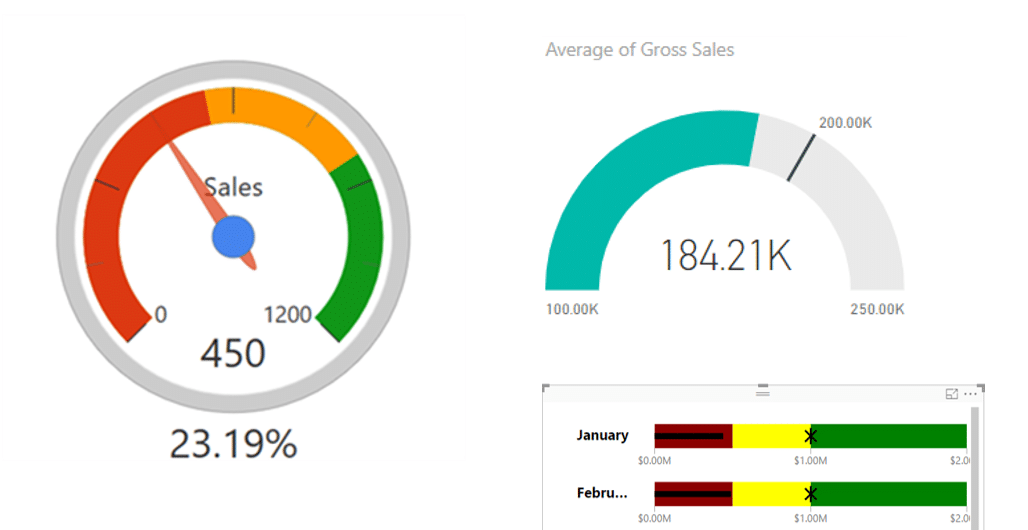
Do not use the gauges or odometers as they are completely overused. They take so much space for just one simple comparison.

gauges and odometers showing variances

You could use the half-circle chart on the right but that still takes up a lot of space. The problem with this visualization is again that it does not visualize the gap. In this example, we are interested in the gap and see that the actual sales were below budget. That gap below the budget line should be in red.

The chart shows that our plan was 200k in sales and should guide your attention there. Visualization should alert you to this.

Let's look at a native visual in Power BI which people use it a lot.

The problem here is that this whole visual is green or red, no matter what the variance is. For example, this is a sales amount and it's accumulated showing year-to-date data. The problem is that if this is a sales versus target chart, there's the target hidden inside but not visible.

Mistake 6: Confusing page layouts

Confusing page layouts come in at number six. Just look at this dashboard that is too common in the business world.

Power BI Dashboard design mistake: a crowded and busy dashboard
Don't take all the charts and mash them up in a single dashboard. You will just confuse the user.

There is no way of knowing what you should look at. Too many elements mean you are unable to communicate clearly. While there are some good decisions - interactive elements are on the top, KPIs are on the left - everything else is simply a mess. There is no sense in the order and placement of charts. It feels like the designer just wanted to mash all possible charts onto a single page.

Information overload 

Cramming excessive data into a single visualization overwhelms viewers and prevents them from extracting meaning. When you pack 20 data series into one chart with no clear focal point, you create cognitive overload that prevents insight rather than enabling it. 

Common symptoms of information overload include: 

  • No clear focal point or message 
  • Too many data series competing for attention 
  • Every metric treated as equally important 
  • Viewers unable to determine what action to take 
  • Stakeholders asking "so what does this mean?" 

Solution strategies: 

  • Limit visualizations to 5-6 data series maximum 
  • Determine what users actually need to focus on and remove everything else 
  • Create multiple focused visualizations instead of one complex chart 
  • Use visual hierarchy to guide attention to the most important information 
  • Apply the "so what?" test—if a data point doesn't change the decision, consider removing it 

Design for how people read 

I'd like to give you an idea of a more sensible dashboard: 

The number one rule you should follow when designing dashboards is that people read from left to right, and from top to bottom. This means you should always put your most important visualizations and most important KPIs to the left and at the top. In my example, the KPIs are at the top left and details are shown below or to the right. 

Particularly if you are designing for senior management, you don't need to include all of these charts. In some cases, they just need short written comments and that's also something that is often missing from dashboards and reports. 

Power BI specific guidance: 

  • Use multiple pages appropriately—don't cram everything on one page 
  • Implement clear navigation between pages 
  • Place primary KPIs in the upper left 
  • Use whitespace to create visual breathing room 
  • Group related charts together 
  • Consider using bookmarks for different views of the same data 

Mistake 7: Not scaling your charts

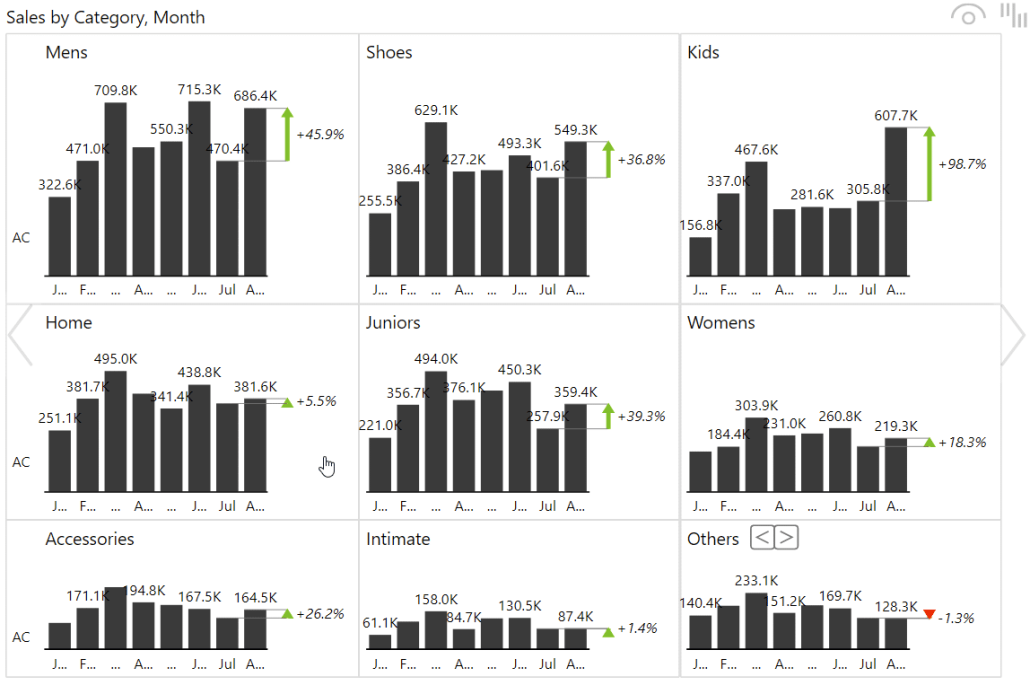
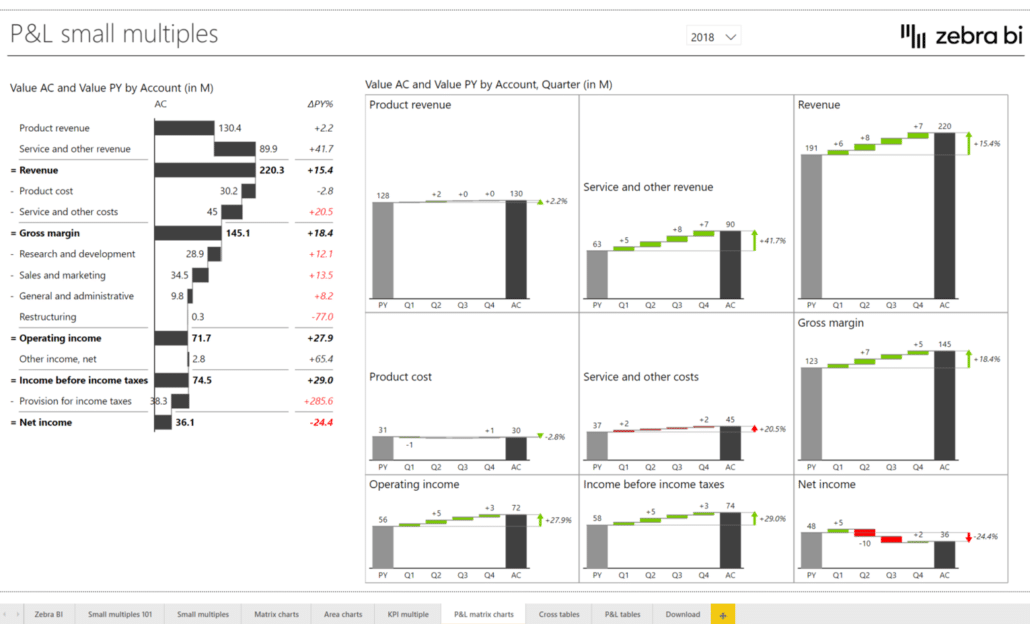
This dashboard now brings me to the last dashboard mistake. If you look carefully here you can see that we are using multiple charts of different sizes: one chart for EBITDA, one chart for EBIT, one chart for free cash flow and one chart for net earnings. The interesting thing here is that all of these charts are scaled. This means that the maximum of all the Y axis on all the charts is the same. This is called small multiples and it's a concept of scaling, which is something that is almost completely missing from all Power BI dashboards.

I probably haven't seen any dashboards in Power BI that use proper scaling with multiple charts. In some cases, you need to synchronize the axes and take your dashboards to the next level. That's why we chose the lack of scaling as my last entry on the list of mistakes.

You need scaling every time you put separate visuals on a page or a dashboard. Power BI will always scale them to the maximum amount. Let's take a look at why this is an issue:

Power BI Dashboard design mistake: dashboard from poorly selected gauges
All the charts are the same size. Some signify millions in losses while others show thousands. This is not reflected in the visual design.

Not all categories were created equal

You can probably see why this is problematic. Each category is the same size as all the others, even though some display categories are 10 times as large as the others. One chart shows a million, while another shows just 49,000. However, when there is a gap between the actuals and the plan in a category that generates millions it is much more concerning than a gap in a category that generates thousands.

Look at an example made with Zebra BI. All the KPIs are in the same visual. This is only possible in Power BI if you put it in one visual. Unfortunately, the native visuals in Power BI don't have this capability so we used Zebra BI visuals here. With our visual you can simply drag and drop all your accounts onto the dashboard to have all your KPIs displayed and rendered to the same maximum value.

Power BI Dashboard design: a dashboard with small multiples showing revenue
Small multiples enable you to easily show the actual volume of each category. By using the same scale, you can see which categories are more important and which are small.

If you want to go from intermediate level Power BI dashboard design to professional, you need to take care of scaling.

Mistake 8: Cherry-picking data 

Cherry-picking means selectively displaying data that supports your viewpoint while hiding contradictory evidence. This creates a misleading picture that can drive poor business decisions. 

Examples include showing only successful months while hiding the full year trend, comparing this year to the worst historical year instead of a relevant average, or displaying data starting at a convenient point that excludes unfavorable context. 

The impact of this can be quite dire. Decision-makers get an incomplete picture and make choices based on partial information. When the full context emerges later, credibility is damaged and corrections are costly. 

To avoid falling into the trap of cherry-picking data, provide full context and complete timeframes. Be transparent about data ranges and any filters applied. 

Zebra BI allows you to take all this one step further, with dynamic comments, dynamic titles, dynamic columns, and tooltips that enable you to add information straight to the visuals, and provide all the context you need to communicate a comprehensive story.  

Just take a look at this:  

And by the way, if you want to learn how to create the best dynamic comments in Power BI, we have a guide for you. Check it out!  

Mistake 9: Confusing correlation with causation 

Two variables showing similar trends doesn't mean one causes the other. Ice cream sales and sunscreen sales both increase in summer—but buying ice cream doesn't cause people to use more sunscreen. Yet this is exactly the type of false causation that poorly designed visualizations imply. 

Example of dashboard that mistakes correlation with causation

This mistake becomes particularly dangerous with dual-axis charts that overlay two metrics on the same visualization. The visual proximity implies a causal relationship that may not exist, leading to incorrect business decisions and wasted resources pursuing non-existent connections. 

We recommend using small multiples, where all charts are unified for scale and can offer accurate indication of the magnitude in changes in trends and causes.  

Example of dashboard that doesn't confuse correlation with causation (using small multiples in Zebra BI)

Mistake 10: Missing context in data 

Showing absolute numbers without relative context creates misleading comparisons. Displaying total revenue for companies of vastly different sizes, showing population totals without per capita context, or presenting growth numbers without baseline values all distort the real story. 

Small companies appear to underperform compared to large enterprises when absolute revenue is shown. Countries with larger populations always show higher totals, obscuring per capita performance. Changes appear dramatic without context for whether they're significant. 

Provide relative values alongside absolutes—percentages, per capita figures, or indexed values. Add baselines, targets, and reference lines to give context. Include clear axis labels with units. Use tooltips in Power BI to provide additional context without cluttering the main visualization. 

Example of a dashboard that does not miss context

A quick Power BI dashboard redesign

To apply what we've learned, we will take dashboard and redesign it into something that's more understandable and easier to read. If you want to learn more, check out the most effective Power BI Dashboard tips and tricks.

Power BI Dashboard design: multiple mistakes
This chart has multiple issues: wrong orientation, color selection, information density, etc.

We will apply the rules we've set out so far. The first chart is showing store names and the numbers they're achieving. First of all, this chart should not run left to right and we'll switch it around to make it more readable.

I will rearrange the charts - put the two charts showing monthly data can together and make sure their widths match. We are working with two charts - the first one showing sales versus previous year and the second showing the variance in percentage. It would be really nice to have a better way of showing the variance.

Now let's look at the slicer. First, decide whether this dashboard is designed for each district manager. Each manager will just review this dashboard on his own by selecting his name and viewing the data. If this is the case, just turn the slicer into a dropdown menu. This will give you a simple slicer that people will be able to use easily.

Another option is to create a comparison between the district managers. To do this, turn the slicer into a chart by adding sales values for each manager. The next step would be to determine whether these guys are hitting their targets or not. This means it's time for variances.

Variances with Zebra BI visuals

At this stage of the redesign, we'll break out Zebra BI visuals. We will add a Power Tables visual. Initially it looks the same but now comes the interesting part. We need to see whether these managers are achieving their plan or not. To achieve this, we will add Goal data field to make the dashboard actionable. As soon as we do this, we see all of these guys are below their plan as shown by the red section in their bars.

bar chart showing undeperforming managers
Turning a slicer into a chart shows that all managers are under-performing.

Next up is store data. Normally, people would use two bars for each store to show actual and budget values. However, in Zebra BI visuals, the variance is calculated and shown either in absolute values or percentages. You should use the labels that are the most intuitive to the end user. In this case, a small chart works with the variance shown in percentage.

Power BI Dashboard design: bar chart showing sales performance by stores

The next step is to redesign the third chart. It already has this year's sales compared to last year's. First, we should switch it to a Zebra BI visual to get a completely different chart - a waterfall chart. Once you start visualizing variances, you have many, many options but we recommend you use the waterfall chart. For the first time, this chart shows total sales from January to August and the percentage of variance.

Power BI Dashboard design: waterfall chart showing variance between this and last year sales
Waterfall charts are great for showing variances.

You could also use other options, such as column charts or an area chart which was used originally. To make things even clearer, you could take another chart that shows percentage variance and add it on top. We take the existing visual and switch it to Zebra BI visual and set it to only display the relative variance. You do this by opening the Format panel and selecting Relative variance layout under the Chart Settings menu. On top of that, here's how you can insert a difference highlight with one click.

However, the truth is that using two charts is a bit of a trick. The best approach would be to use the waterfall chart here. This waterfall chart can already present the relative variance in a Zebra BI visual, because it's completely responsive, and it will calculate the relative variance as you expand the chart. Eager to learn more? Dive deeper and master variance reports in Power BI.

Solving the bubble chart problem

The last challenge is really difficult. We're talking about the bubble chart that shows sales variance and other things. We believe that it is probably too much for a regular user. When you design a dashboard, you should always keep your user in mind. In our case, this dashboard already has a lot of information on one page, but we are working with what was on it.

colorful bubble chart

The first step is to reduce the color of the bar of this bubble chart. We recommend that you try to use completely neutral colors. In my case, the bubbles are now light grey and we have added a reference line here showing the sales variance in percent. So, now everything to the left from this is under-performing categories and everything to the right is good. Now you have at least some reference point that you can compare against and understand these bubbles a little bit better. This minimalist approach works shows data better.

monochrome bubble chart

Here is the end result of this quick redesign that fixed common dashboard mistakes.

Power BI Dashboard design: simplified and more organized dashboard

Best practices for effective data visualization 

Apply these principles to create visualizations that inform rather than confuse: 

Design principles 

Here are some basic rules to help you focus on clarity and purpose in every visual element you create:  

  • Remove everything that doesn't add value by applying Edward Tufte's "data-ink ratio"—the principle that every pixel should represent data, not decoration.  
  • Choose appropriate chart types that match your specific data structure and message—bars for comparisons, lines for trends over time, scatter plots for correlations.  
  • Use color purposefully and consistently, limiting yourself to 5-6 colors per visualization, with each color maintaining the same meaning throughout your dashboard. 
  • Provide adequate context through clear labels, baselines, and reference points so viewers understand what the numbers mean.  
  • Design for your specific audience's knowledge level and needs—executives require different complexity than analysts.  
  • Create visual hierarchy that guides attention to what matters most by using size, color intensity, and strategic positioning. 

Data integrity 

  • Ensure your visualizations represent reality honestly and completely by following these data visualization best practices:  
  • Maintain accurate representation without distortion by starting bar chart axes at zero and using consistent scales.  
  • Show complete context rather than cherry-picking data that supports only your preferred narrative.  
  • Never confuse correlation with causation in your titles or implications—umbrella sales and hot chocolate sales both rise in cold weather, but one doesn't drive the other. 
  • Include appropriate scales and avoid truncated axes that exaggerate changes, particularly in bar and column charts.  
  • Be transparent about data sources, filters, and limitations so your audience can properly interpret what they're seeing and trust your analysis. 

Dashboard-specific practices 

At dashboard level, there are some specific best practices you should keep in mind: 

  • Build dashboards that drive action, not just display information (or worse, “look pretty”).  
  • Show comparisons and variances, not just absolute values—this is critical for making dashboards actionable.  
  • Follow IBCS standards for professional business reporting to ensure consistency and immediate comprehension.  
  • Consider accessibility by testing for colorblindness and using sufficient contrast so all users can interpret your visualizations. 
  • Avoid 3D graphics that distort perception and make accurate comparison impossible.  
  • Know when not to visualize—sometimes a table or single number communicates more effectively than a chart. 
  • Scale charts properly when showing multiple KPIs together so visual size accurately reflects relative magnitude. 

Power BI implementation 

Apply these specific techniques to maximize Power BI's effectiveness. 

  • Leverage interactive features appropriately without overusing slicers—more than 5 slicers creates confusion rather than clarity.  
  • Use charts as filters when possible rather than adding more slicers, taking advantage of Power BI's cross-filtering capabilities.  
  • Maintain consistent color schemes across all pages so users don't have to relearn color meanings as they navigate. 
  • Test dashboards with actual users before deploying to catch problems you might miss as the designer.  
  • Implement proper time dimensions with abbreviated month names to avoid tilted, overlapping labels that plague so many Power BI reports. 

The IBCS advantage 

If possible, implement a standard in your reporting. The principles we were trying to demonstrate as going through all the dashboards are compiled in an international standard that is called IBCS (International Business Communication Standards). IBCS is a really, really nice collection of best practices in data visualization for business data visualization, for finance, sales dashboards, marketing dashboards and others. 

The IBCS advantage means your reports speak the same visual language as other professional business communications, making them immediately understandable to executives familiar with standardized notation. 

Here’s more about IBCS if you want to learn about it and why it’s one of the best data visualization standards in the world.  

Professional business reporting with Zebra BI 

When designing your dashboards, put yourself in the shoes of your users. While fancy colors and charts might look impressive, they do not always convey the most actionable and understandable information. Focus on getting the basics right: labels, colors, chart selection, variances and scaling. This will help you get the best results every time. 

While Power BI provides powerful visualization capabilities, standard visuals lack features essential for professional business reporting. They don't include built-in variance visualization capabilities, offer no IBCS compliance out of the box, and provide limited support for scaling and small multiples—all critical for executive-level reporting. 

Zebra BI transforms Power BI dashboards into a professional-grade business reporting platform your entire company will benefit from: 

  • Built-in IBCS standards compliance: Automatically applies International Business Communication Standards, ensuring your reports meet professional expectations for board presentations and executive reviews. 
  • Automatic variance calculations: Built-in waterfall charts and variance displays show not just "how much" but also "why"—the critical context executives need for decision-making. Variances are calculated and visualized automatically as soon as you add your plan or previous year data. 
  • Professional formatting by default: Small multiples with consistent scaling, appropriate use of color for variances, and standardized chart types that communicate clearly without extensive manual formatting. 
  • Ideal use cases: Financial reports, budget vs. actual comparisons, KPI dashboards, board presentations, monthly business reviews, and any reporting where variance analysis matters. 
  • Dashboard templates: Zebra BI provides you with Power BI dashboard templates you can grab, adapt, and use, without the hassle and the time investment. Take a look at all the dashboard templates we have prepared for you, if you want to learn more.

Leave a Comment

Want to join the discussion? Feel free to contribute!

Try Zebra BI for free
close icon
Black Friday
Special Offer
Check it out